Knowledge Base
The AI orchestration layer for your whole business — dev, launch, market, support. One board. Closed loop.
What is LaneConductor?
LaneConductor is the AI orchestration layer for your whole business — not just code. Dev ships features, marketing posts launches, sales runs outreach, support resolves tickets. Every function runs as a track on one board, executed or assisted by AI agents, and measured against a KPI so you know what actually worked.
It is not a project tracker (those are passive — humans do the work). LaneConductor is an operating layer: agents execute the work, outcomes are measured, and failed experiments automatically replan with measurement data attached. The Conductor metaphor is exact — it doesn't play the instruments, it orchestrates them.
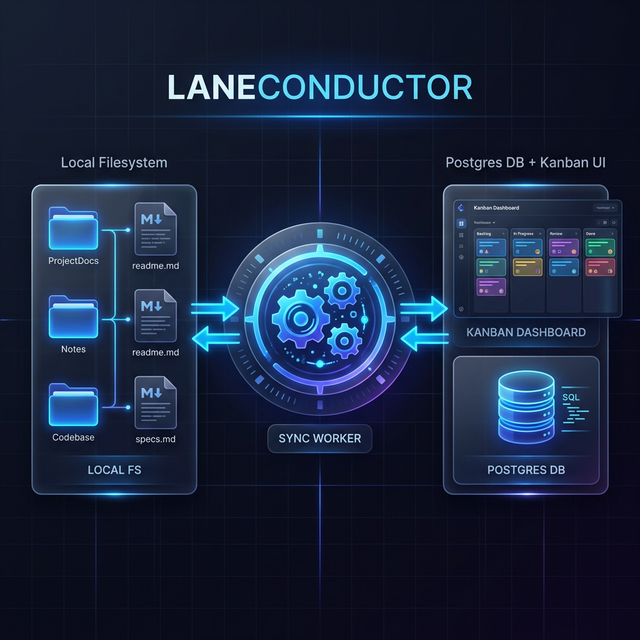
It acts as the "connective tissue" between every business function and its AI agent — providing visibility, guardrails, KPI measurement, and closed-loop replanning for every track.
Track Types
| Type | What AI does | How success is measured |
|---|---|---|
| dev | Plans, implements, reviews, and ships code | Tests pass, quality gate clears |
| marketing | Drafts launch posts, copy, campaigns — human publishes | KPI: HN score, Reddit upvotes, PH upvotes |
| sales | Writes outreach sequences, pitches, one-pagers — human sends | KPI: replies, conversions |
| support | Drafts responses, knowledge base articles | KPI: resolution rate, CSAT |
LaneConductor vs. Standalone Coding Agents
While standalone CLI tools (such as Claude Code, Gemini CLI, Cursor Agent, or Aider) provide interactive single-session coding in a terminal, LaneConductor functions as an autonomous multi-agent control plane orchestrating complex development lifecycles across your entire repository.
Instead of babysitting a single terminal REPL while it makes in-place file modifications, you coordinate an autonomous fleet. You align on architecture and plans in chat, update design documents, and queue background workers in isolated Git worktrees that plan, implement, verify with quality gates, and open PRs independently.
Head-to-Head Comparison
| Dimension | Standalone Coding Agents | LaneConductor Control Plane |
|---|---|---|
| Architecture | Ephemeral, single-terminal REPL (1 human ↔ 1 session) | Sovereign multi-agent control plane with background worker fleet |
| Visibility | Terminal scrollback buffer (lost across sessions) | Persistent Kanban dashboard backed by local Postgres & Markdown bus |
| Workspace Isolation | Direct in-place edits on primary checkout; prone to dirty checkouts | Git Worktree Isolation: dedicated worktrees keep main pristine |
| Execution Safety | Chat turns write code directly to your working tree | Dual-Mode Safety: chat turns edit design docs only; code changes are sandboxed in worktrees |
| Target Switchability | Single monolithic terminal session | Switch dynamically between The Manager (instance health & gaps) and Track Workers |
| Steerable Roadmaps | Ad-hoc prompt conversation disconnected from track plans | Conversational steering updates spec.md/plan.md and re-queues tracks (/laneconductor move) |
| Quality Gates & PRs | Manual review, manual commit, manual test execution | Automated Quality Gates, lint/build verification, and automated PR / Direct Merge |
The Conductor Pattern
The core philosophy of LaneConductor is based on the Conductor Pattern. In this model, the AI agent is not just a chatbot, but a worker moving through a series of discrete "Lanes" (phases of development).
Often referred to as the Ralph Wiggum Loop, the standard cycle is: Plan → Implement → Review → Quality Gate → Done.
Each Lane represents a specific level of commitment and verification:
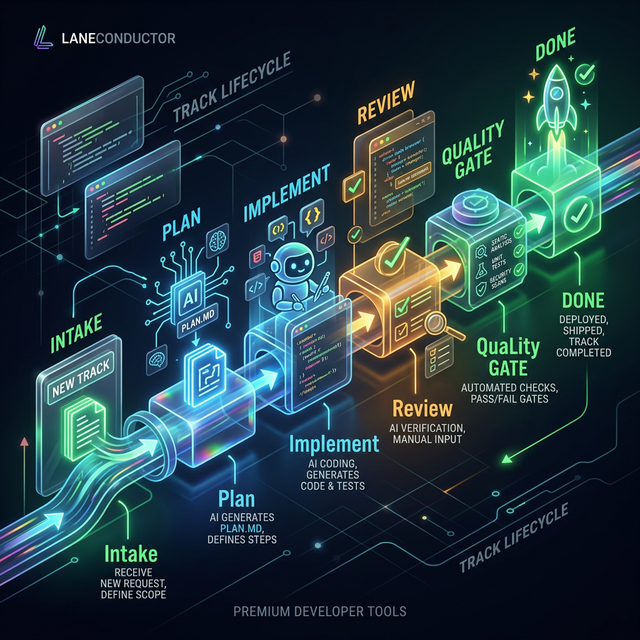
- Backlog: Ideas and requested features.
- Plan: The agent drafts a technical specification (
spec.md) for human approval. - Implement: The agent is actively writing code and performing internal iterations.
- Review: The work is staged for human or peer-AI review.
- Quality Gate: Automated verification (tests, linting, builds) is executed.
- Done: The feature is merged and the track is closed.
Installation
LaneConductor is designed to be lightweight and sovereign. It runs entirely on your hardware.
Global Setup
First, clone the core orchestrator and register the lc command.
git clone https://github.com/meller/laneconductor.git
cd laneconductor
make install
Project Setup
Navigate to any repo you want to track. LaneConductor needs to be initialized in each repository.
cd ~/Code/my-awesome-app
lc setup    # Scaffolds conductor/ directory and registers the project
After initializing with the CLI, use any AI Agent (Claude or Gemini) to generate your AI context files automatically:
# In Claude Code
/laneconductor setup scaffold

# In Gemini CLI
Prompt with instructions from .claude/skills/laneconductor/SKILL.mdWhen you run lc setup, LaneConductor automatically creates a symbolic
link (linux symlink)
from your global installation into .claude/skills/laneconductor of the target repo.
This ensures that all projects always use the latest version of the skill without manual
copying.
For local-api mode, you'll need a local Postgres instance. LaneConductor uses a
single database to track all your projects simultaneously.
Use as a Pure Claude Skill — Default Configuration
Claude is the default and recommended primary agent for LaneConductor. While the CLI handles infrastructure,
the /laneconductor skill provides Claude Code with the instructions and tools it needs
to operate autonomously. This is the most stable and well-tested configuration.
How to Invoke
Once you've run lc setup, the skill is automatically symlinked into your project's
.claude/skills/. You can then use it directly in your chat:
/laneconductor implement 101Pure Skill Workflow
In this mode, Claude uses its internal "System Prompt" (defined in SKILL.md) to:
- Understand the **Conductor Workflow**.
- Read/Write to the **Filesystem Bus** (
conductor/tracks/). - Perform **Bidirectional Sync** with the local database.
- Coordinate with other agents through shared Markdown state.
The Setup Scaffold Process
The /laneconductor setup scaffold command is the fastest way to give an AI agent context
about your project. It uses AI reasoning to scan your codebase and generate documentation.
What happens during Scaffold?
- Codebase Scan: The agent reads your
package.json,README.md, source directories, and configuration files (ESLint, Prettier, etc.). - Inference: It infers the project's purpose, tech stack, and coding standards.
- File Generation: It automatically scaffolds the
conductor/directory:product.md: Business logic and high-level goals.product-guidelines.md: Brand, style, and UX principles.design-language.md: Color tokens, typography, spacing, and component conventions.tech-stack.md: Frameworks, libraries, and architectural patterns.deployment-stack.md: Hosting, environments, and deploy commands.workflow.md: Human-readable development process.kpis.md: North-star metrics tracks can map to.user-stories.md: Key personas and their end-to-end journeys.code_styleguides/: Detailed rules inferred from your config files.
- Skill Linking: It ensures the LaneConductor skill is symlinked so it can be used locally.
Scaffold also detects "foreign tracks" from other tools (like Gemini Conductor) and offers to import them into the LaneConductor system automatically.
LLM Configuration
LaneConductor allows you to define which AI agents and models are used for specific tasks, providing a robust fallback system.
Primary vs. Secondary LLMs
Configured during lc setup or manually in .laneconductor.json, you can
specify:
- Primary Agent: The default worker. (Default:
claudeusinghaiku). Claude is the most thoroughly tested and recommended configuration. - Secondary Agent: Experimental: A fallback worker used if the primary hits rate limits or
specific task failures. (Default:
geminiusinglatest). This feature is still under active development and may have compatibility issues.
Secondary LLM support (Gemini, etc.) is currently experimental. For production use, Claude is the only fully supported primary agent. Secondary fallback agents may have gaps in task execution and state synchronization.
Workflow Overrides
In conductor/workflow.json, you can override models for specific lanes. For example, you
might use a faster model for planning and a more powerful one for
implementation:
{
  "lanes": {
    "plan": { "primary_model": "claude-opus-5" },
    "implement": { "primary_model": "claude-sonnet-5" },
    "review": { "primary_model": "claude-3-5-haiku" }
  }
}
The key is primary_model — a lane's setting wins over the project default for that
lane's automated runs. The provider (CLI) stays fixed project-wide; only the model varies per
lane, which preserves session continuity across lane transitions.
Modular Integrations
LaneConductor supports a service-oriented integration architecture designed for security and scalability. It is designed to bridge the gap between your local environment and enterprise tools across multiple operating modes.
- Local API: Connects to your local Postgres instance for personal project tracking.
- Remote API: Scales to centralized teams via Cloud Functions and Neon Postgres.
- Jira: Bidirectional sync with Atlassian Jira projects (Cloud and On-Premise).
- Extensible: Modular adapters allow adding new providers (GitHub, Slack, etc.) with minimal overhead.
Secure Proxying
Local workers never see third-party API keys. When a worker needs to update an external service (like Jira), it calls the authenticated Integration Proxy on the Cloud API. The API injects the project-specific secrets and forwards the request, ensuring credentials never leave the secure cloud environment.
Metadata Mapping
Project and Track metadata is stored in integrations JSONB columns, allowing bidirectional mapping between local tracks and external resources (e.g., mapping Track 1067 to Jira Issue PROJ-1067).
Jira Workflow — Hybrid Sync
The Jira integration uses a Hybrid Sync model: Inbound Webhooks for instant updates, and Polling-based Bidirectional Sync for reliability and conflict resolution.
1. Inbound (Jira → LC)
When a Jira issue is labeled or moved, LaneConductor processes the update via two paths:
- Webhooks (Instant): Jira sends a POST to
/v1/webhooks/jira. The Cloud API translates this to a command that notifies all active workers. - Polling (Reliable): Workers poll the Jira API every 60 seconds. This captures any updates missed during downtime and performs deep-sync of contents.
2. Outbound (LC → Jira)
Workers push filesystem changes back to Jira after every sync cycle:
- Multi-file Sync: LaneConductor aggregates
index.md,plan.md,spec.md, andtest.mdinto the Jira issue description using Atlassian Document Format (ADF). - Lane Tracking Labels: Issues are tagged with
lconductor-status-<status>(e.g.,lconductor-status-running) for state visibility within Jira. - Transitions: Jira issue status is automatically transitioned to match the local lane (e.g., "Implement" → "In Progress").
Conflict Resolution
Latest version wins with a 10-second "edit grace period":
- If both sides are modified within 10 seconds, the sync is delayed to prevent thrashing.
- After the grace period, the newer timestamp (Filesystem mtime vs. Jira's
updated) becomes the source of truth. - Timestamp-based Dedup: Multiple workers can safely poll the same project; only the worker that detects a newer timestamp will perform the write.
Operating Modes
One of LaneConductor's greatest strengths is its flexibility. You can switch modes based on your environment.
1. Local FS (Headless)
The simplest mode. Everything is stored in Markdown files. There is no database or API server. This is perfect for air-gapped environments or CI/CD pipelines where you want a clean audit trail without infrastructure overhead.
2. Local API (Dashboard)
The standard developer experience. A background worker syncs your files to a local Postgres database, and a Vite-powered dashboard provides a real-time Kanban view of all your projects.
3. Remote API (Team)
For teams. Local workers sync to a shared remote collector. This allows project managers and teammates to see agent progress across the entire organization in a unified view.
Skill-Only vs Worker Modes — Feature Comparison
Before any of the three modes above, there's a zero-install on-ramp: skill-only.
An AI session (Claude Desktop, an interactive CLI chat) drives the conductor/
files directly through the /laneconductor skill — no worker process, no database,
nothing to install. Everything degrades gracefully to it. The table below is the honest upgrade
path: each column to the right is a reason to install more.
| Feature | Skill-only | Worker (local-fs) | Full stack (local-api) | Cloud (remote-api) |
|---|---|---|---|---|
| Track scaffolding, plan/implement/review via markdown | ✅ | ✅ | ✅ | ✅ |
| Git lock + worktree isolation | ✅ manual | ✅ automatic | ✅ automatic | ✅ automatic |
| Auto-launch of queued lane actions | ❌ human invokes each step | ✅ | ✅ | ✅ |
Retry / on-failure lane automation (workflow.json) | ❌ | ✅ | ✅ | ✅ |
Per-lane model (primary_model per lane) | ❌ session model is whatever the human runs | ✅ | ✅ | ✅ |
| Per-track model override (planned) | ❌ same reason | ✅ | ✅ | ✅ |
| Provider exhaustion fallback (primary → secondary CLI) | ❌ | ✅ | ✅ | ✅ |
Session continuity across lane actions (--resume) | n/a (one human session) | ✅ | ✅ | ✅ |
| Live model discovery from the machine (heartbeat) | ❌ | ❌ no collector to report to | ✅ | ✅ |
| Kanban dashboard, Inbox, conversation UI | ❌ | ❌ | ✅ localhost:8090 | ✅ cloud URL |
| Worker dispatch ("run this on that worker") | ❌ | ❌ | ✅ | ✅ |
| Multi-machine / team coordination, worker identity | ❌ | git locks only | ✅ single machine | ✅ full |
Per-lane and per-track model settings are resolved by the worker at spawn time
(it passes --model to the CLI it launches). In skill-only mode there is nothing to
spawn, so the model is simply whatever session you're running. Matching is best-effort: the
model id is not validated against the executing machine's installed models — a mismatch fails
that run (normal retry handling applies) rather than being blocked up front.
Project Status & Verified Environment
LaneConductor is in rapid active development. To ensure a stable experience, we recommend using the following verified configurations:
- Operating Systems: Ubuntu (Linux) and Windows Subsystem for Linux (WSL2).
- Verified AI APIs: Claude CLI (
claude) and Gemini CLI (npx @google/gemini-cli). - Core Mode:
local-api(Local Postgres + Vite UI) is the primary tested pathway for daily development.
Other environments (macOS, direct Windows) and mode combinations are currently under development.
Operational Safety & Best Practices
Working with AI agents requires a balance between automation and oversight. We've identified two primary patterns of operation:
Run the background worker in sync-only mode (the default: lc start).
In this mode, the worker only handles data synchronization between the filesystem and the database. You then invoke the
/laneconductor skill manually within Claude Code as you work.
This allows you to watch the agent's logic in real-time while using the
UI dashboard for high-level tracking.
The Hallucination Factor
LaneConductor supports a "Full Loop" mode where the agent can automatically move from Plan → Implement → Review. However, this mode carries a higher risk of LLM Hallucinations.
Due to current LLM limitations, an agent might occasionally "think" it has completed a task, updated a file, or passed a test when it hasn't actually performed the action. This can lead to a state drift between the track documentation and the actual codebase.
Unless you are performing highly repetitive, low-risk tasks, Safe Mode is the preferred workflow. Always use the Quality Gate lane or manual verification for any critical code changes.
Bidirectional Sync & Track Status
LaneConductor solves the "source of truth" problem with a deterministic sync loop. It bridges the gap between the Filesystem (where agents work) and the API/UI (where humans coordinate).
The Sync Process
The heartbeat worker (managed by lc start) continuously monitors your conductor/tracks/ directory and syncs track status in both directions:
- Filesystem → Database: When Claude or a human updates a track's
index.md, the worker detects the change and updates the database within seconds. - Database → Filesystem: When you move a card on the Kanban dashboard, the UI writes a signal that the worker detects and updates the corresponding Markdown file.
Sync Strategy: "Newer Wins"
The sync strategy is "Newer Wins". If you edit a Markdown file on disk, the UI updates within 5 seconds. If you move a card on the Kanban board, the UI writes a signal to the filesystem that the agent picks up instantly. This ensures real-time coordination between agents and humans.
Worker Modes
The heartbeat worker operates in two modes:
- Sync-Only (Default):
lc startruns the worker in sync-only mode by default. It performs filesystem ↔ database synchronization only, without polling the task queue for automated execution. This is the safe, recommended mode for most workflows. - Sync-and-Work:
lc start --sync-and-workenables full automation. The worker will also poll the queue and automatically execute tracks based on your workflow configuration. Use this for highly repetitive, well-tested tasks.
Filesystem Bus
The Filesystem Bus is the primary communication channel for LaneConductor. Instead
of complex API calls, orchestration is handled by reading and writing to standardized Markdown files
in your repository's conductor/ directory.
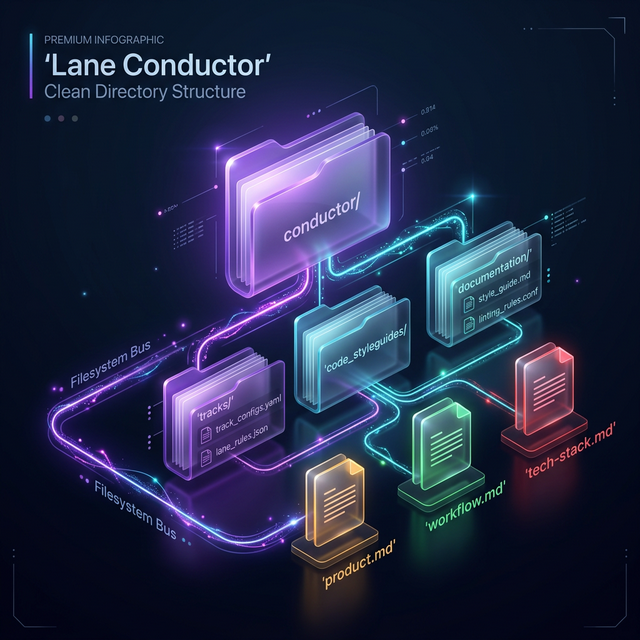
This approach ensures that your project's technical context, workflow, and track states are always part of your version control (Git), enabling full traceability and "headless" operation without any database connectivity.
Track Lifecycle
Every piece of work is a Track. A track is a folder containing its own history, specs, and state.
Anatomy of a Track
Located in conductor/tracks/TRK-ID/, a track typically contains:
- index.md: The main state file (Title, Description, Status, Progress).
- spec.md: The technical plan and architectural decisions.
- plan.md: The step-by-step execution phases.
- test.md: Verification criteria and test plans, driving our context and test-driven approach.
- conversation.md: The full history of comments between the human and the agent.
- quality-gate.md: Track-specific quality criteria and verification results.
State Transitions
Tracks move through the workflow based on the conductor/workflow.json configuration.
Transitions can be triggered by the CLI, the UI, or the Agent itself through lc pulse.
Persistent Chat & Control Surface
Accessible at /chat in the web dashboard, the persistent Chat surface provides a unified control room to interact with, steer, and monitor all agents in your LaneConductor instance.
1. Target Switchability: Manager vs. Track Workers
The Chat surface allows you to dynamically switch contexts without navigating away or losing conversational state:
- The Manager: Always available. Possesses instance-wide awareness of all projects, active tracks, worker health, and setup gaps. It uses the
/laneconductorskill to triage issues and diagnose system health. - Track Workers: Grounded in the specific track's context (
index.md,spec.md,plan.md,test.md), giving you direct access to the worker executing or assigned to that track.
2. Steerable Track Chat (In-Conversation Alignment)
When you discuss requirements or bug fixes with a worker in the chat, the worker has documentation write permissions. It updates the track's design documents in-place and invokes /laneconductor move <track> implement:queue to kick off background execution in a dedicated Git worktree.
3. Live Stream Affordances
Live turns render real-time telemetry matching modern terminal coding agents:
- Active Activity Status: Dynamically updates through a turn based on real stream-json events (e.g.,
Thinking…,Tool: Read,Tool: Edit). - Elapsed Timer: Live timer updating every second while active, freezing on completion.
- Live Token Usage: Cumulative output tokens and context tokens displayed as tokens stream.
4. Honest Queued Intervention
Because background workers execute headless runs without stdin pipes, messages sent while a worker is actively executing are safely queued. The UI explicitly states:
"Queued — waiting for current <action> to complete. Your message will not interrupt the running turn and will be processed next." Messages transition to active reply automatically once the running action concludes.
5. Deterministic Setup Diagnostics
The Chat surface queries GET /api/state on load. If blocking gaps are detected (e.g., no live worker or missing CLI provider), a client-side setup wizard card guides the user with exact copy-paste remedies. When setup is complete, zero background turns or model tokens are spent.
Workspace Modes
Every track resolves to one of two workspace modes at execution time:
branch(Default): Runs in an isolated Git worktree on a track-specific branch (e.g.,track-NNN) and merges back to main only when the track succeeds. This keeps main clean and isolates autonomous runs.main: Runs directly in the primary checkout on themainbranch with no worktree or branch overhead. Ideal for self-hosted infrastructure updates or live developer-agent pairing where changes need immediate local activation.
Workspace mode is controlled using markers in index.md:
**Workspace**: main|branch— Explicit choice.**Track Kind**: bug|feature— Infers the mode (bugs default tomain, features default tobranch), but auto-run queue pickups default to the saferbranchmode if not explicitly overridden.
Note: The plan lane always runs direct on main to generate track docs, lazily creating the worktree on the first implement step if branch mode is active.
Worktrees & Panel
When running a track in branch workspace mode, LaneConductor leverages Git Worktrees to provide isolated parallel execution. This isolates the agent's work, ensuring that uncommitted changes and branch states are quarantined. The Worktrees Panel on the dashboard provides direct human visibility and control over these environments:
- Active Worktrees Visibility: Lists all currently checked out track worktrees, their absolute filesystem paths, corresponding branch names, and unmerged commits.
- Dev-Server Preview: Allows developers to swap the active dev server to run code directly from a specific worktree. This enables live manual previewing and verification of the agent's work before it is merged.
- PR & Integration Hub: Displays open Pull Requests, merge statuses (e.g.,
open,conflicted,merged), and provides direct action buttons (like "Approve & Merge" or "Clean up worktree") to let humans control integration from the UI. - Lock Serialization: Visualizes track worktree locks (
.conductor/locks/) which guarantee that workers do not clash when claiming tasks.
Concurrency & Locking
Four independent constraints govern how many track sessions can run at once, stacked together rather than substituting for one another:
- Per-lane limit —
lanes.<lane>.parallel_limitinconductor/workflow.jsoncaps how many sessions of that one lane (e.g.implement) may run concurrently. - Project-wide limit —
global.total_parallel_limit(default3) is a second, separate ceiling across all lanes combined, checked independently of the per-lane limit above. - Per-track lock —
.conductor/locks/<N>.lock(the same lock the Worktrees panel visualizes) guarantees at most one concurrent session for a given track number, regardless of lane or workspace mode. This alone is sufficient inbranchmode, since every track already has its own isolated worktree — two different tracks can never collide with each other there. - Global main-mode lock —
main-mode work has no worktree isolation at all: it runs directly in the one primary checkout, which every worker shares. A per-track lock can't prevent two different tracks' main-mode sessions from stomping on the same files, so an additional, narrower lock exists purely for this case — at most onemain-mode session may run project-wide, across every lane and every track, until it releases. A track waiting on this isn't stuck; it retries each poll cycle and proceeds automatically once the checkout is clean.
In practice: branch-mode tracks parallelize freely up to the lane and project-wide
limits above. main-mode tracks (including every plan lane run, which
always executes on main) are additionally serialized to one at a time, since they
share a single unprotected checkout instead of an isolated worktree.
PR & Merge Modes
Controls how track branches integrate back into the main branch once the Quality Gate passes:
pr(Default): Pushes the track branch to GitHub and opens a Pull Request. A human can preview the branch from the Worktrees panel and approve/merge the PR directly in the LaneConductor UI or on GitHub.direct: The worker automatically merges the track branch straight tomainvia a fast-forward/non-fast-forward merge upon passing the Quality Gate.
Configure this via the FS marker in index.md: **Merge Mode**: pr|direct.
Auto-Run Configuration
Determines whether a track can be automatically claimed and executed by background workers without manual human triggering:
**Auto Run**: yes: Allows non-sync-only workers to pick up the track from the queue and automatically move it through planning, implementation, and review.**Auto Run**: no(or omitted): The track remains in the queue until a developer manually clicks run or dispatch in the UI, ensuring sensitive changes are never run unattended.
Quality Gates
The Quality Gate lane is where trust is established. LaneConductor runs your project's existing verification tools before allowing a track to reach "Done".
Configuration is handled in conductor/quality-gate.md using a simple checklist format
that the agent or human can execute.
# Quality Gate Checklist
- [ ] Syntax: `npm run lint`
- [ ] Logic: `npm test`
- [ ] Security: `npm audit`
Autoresearch Pattern — Karpathy-Inspired KPI Loops
Most AI workflows focus on the generate step but skip the evaluate step. Andrej Karpathy's autoresearch idea is simple: define the measurement method before you start, automate it, and let the eval loop close itself. If you can measure automatically, you can run experiments at scale and the system tells you what worked.
LaneConductor applies this to every business function — not just evals on model outputs, but on real-world outcomes: did the Show HN post score 100? Did the cold email get replies? Did the support doc reduce repeat questions?
The Four Steps
| Step | What happens | Where it lives |
|---|---|---|
| 1. Define success first | The ## KPI block in spec.md forces you to declare Target, Threshold, Source, and Window before writing a line of content or code. |
spec.md |
| 2. Automate the measurement | conductor/measure.mjs queries live sources (HN API, Reddit API, manual marker, custom URL) and returns { actual, passed, raw }. Zero external dependencies, native Node 18 fetch. |
conductor/measure.mjs |
| 3. Wait for the right window | When a non-dev track is published, the worker writes kpi_check_after = now + window to index.md. The quality gate auto-triggers when the window expires — not immediately. Measuring a Show HN score 5 minutes after posting is noise. |
index.md → **KPI Check After** |
| 4. Close the loop | On KPI miss, the worker writes ## ❌ KPI MISS to plan.md with target, actual, delta, and raw snapshot. The planning skill reads this on re-entry and generates a different hypothesis — new angle, different channel, adjusted CTA. Misses accumulate so the planner can see the full experiment trail. |
plan.md |
Example: Show HN KPI Block
## KPI

**Metric**: HN Score (upvotes)
**Source**: hn-api
**Source Config**: item_id=47338664
**Target**: 100
**Threshold**: 50
**Window**: 48h
**Maps To**: Show HN Score
After 48 hours, measure.mjs queries the HN API, writes the score back to
index.md as **KPI Actual**: N, and the quality gate evaluates pass/fail.
If the score missed, the next planning cycle gets the full measurement snapshot as context.
Supported Sources
| Source | What it measures | Source Config |
|---|---|---|
hn-api | Hacker News item score | item_id=12345 |
reddit-api | Reddit post upvotes | Post URL or path |
manual | Human-entered value | Write **KPI Actual**: N in index.md |
custom-url | First numeric value from any JSON endpoint | Full URL |
CLI Reference: General
| lc setup | Initialize or update LaneConductor in the current repo. |
| lc start | Start the heartbeat worker (syncs files ←→ DB). |
| lc stop | Stop the background heartbeat worker. |
| lc restart | Restart the background worker and API. |
| lc ui | Launch the Kanban dashboard (Vite). |
| lc api | Directly manage the Collector API service. |
| lc status | Print a summary of active tracks in the terminal. |
| lc state [--json] | Print live instance snapshot and setup diagnostics (tracks by lane, workers, providers, gaps). |
| lc verify | Run health checks on the project setup. |
CLI Reference: Track Management
| lc new [title] | Create a new track and scaffold files. |
| lc move [id] [lane] | Manually transition a track to a new lane. |
| lc pulse [id] [msg] [%] | Update progress and status message. |
| lc comment [id] [msg] | Post a message to the track's inbox. |
| lc show [id] | Show detailed status, spec, and recent logs. |
| lc logs [id] | Tail the execution logs for a specific track. |
| lc rerun [id] | Reset retries and requeue for processing. |
| lc quality-gate [id] | Run the automated quality checks for a track. |
You can use lane names as commands: lc plan 101 is equivalent to
lc move 101 plan. This works for plan, implement,
review, quality-gate, and done.
Configuration
LaneConductor is highly configurable. The two main control files are:
1. .laneconductor.json
Stores project-specific settings like the Project ID, mode, and visibility.
2. conductor/workflow.json
Defines the state machine behavior. You can set parallel execution limits per lane, model overrides, and custom success/failure transitions.
{
  "lanes": {
    "implement": {
      "parallel_limit": 1,
      "max_retries": 3,
      "on_success": "review:queue"
    }
  }
}
Secret Management
LaneConductor follows a strict pattern: no secrets in source code, no secrets in git history. All credentials are stored in GCP Secret Manager and pulled locally on demand via ADC.
The Pattern
Every sensitive value lives in exactly one place: GCP Secret Manager. Local .env files are generated from Secret Manager at dev-time and are always gitignored. Example files with placeholders are committed instead.
Repository (public)          GCP Secret Manager (private)
─────────────────────        ────────────────────────────
.env.example            ←──  CLOUD_DB_PASSWORD
.firebaserc.example     ←──  CLOUD_DB_HOST / CLOUD_DB_USER
.laneconductor.json     ←──  VITE_FIREBASE_API_KEY
  .example                   VITE_FIREBASE_PROJECT_ID
                             GCP_PROJECT_ID
                             ... (all runtime secrets)
Bootstrapping a New Machine
After cloning, a single script pulls everything from Secret Manager and writes the local env files:
gcloud auth application-default login
./scripts/load-env.sh
This writes .env and ui/.env.remote — both gitignored. Access is controlled by GCP IAM: only accounts granted the Secret Manager Secret Accessor role can run the script successfully.
Cloud Functions
Firebase Cloud Functions read secrets at runtime via defineSecret() from firebase-functions/params. Secrets are declared in the function export and injected by Firebase — never hardcoded or passed as environment variables in deployment config:
const dbPassword = defineSecret("CLOUD_DB_PASSWORD");
const dbHost     = defineSecret("CLOUD_DB_HOST");
const dbUser     = defineSecret("CLOUD_DB_USER");

export const api = onRequest({ secrets: [dbPassword, dbHost, dbUser] }, app);
Deploy Scripts
The production migration script (scripts/migrate-prod.sh) fetches all credentials from Secret Manager at runtime — no values are hardcoded:
DB_HOST=$(gcloud secrets versions access latest --secret="CLOUD_DB_HOST" --project="$GCP_PROJECT_ID")
DB_USER=$(gcloud secrets versions access latest --secret="CLOUD_DB_USER" --project="$GCP_PROJECT_ID")
DB_PASSWORD=$(gcloud secrets versions access latest --secret="CLOUD_DB_PASSWORD" --project="$GCP_PROJECT_ID")
What to Gitignore
The following files are always gitignored. Each has a corresponding .example file committed in its place:
| Gitignored file | Example file in repo | Why |
|---|---|---|
.env |
.env.example |
DB passwords, cloud credentials |
ui/.env.remote |
ui/.env.remote.example |
Firebase Web SDK config |
.firebaserc |
.firebaserc.example |
Firebase project ID |
.laneconductor.json |
.laneconductor.json.example |
Machine-specific config, DB password |
conductor/tracks-metadata.json |
— | Runtime state, auto-generated |
.conductor/ |
— | Lock files with machine name and PIDs |
Guard Patterns
The .gitignore includes glob guards to prevent accidentally re-adding debug scripts:
tmp_*.mjs
check_*.mjs
fix_*.mjs
reset_*.mjs